BYOD Wifi Setup for Windows

BYOD Setup on NTCS-BYOD Wi-Fi – Windows 11

These instructions contain the steps to configure a BYO device on the NT Christian Schools BYOD network. 

  1. Join the NTCS-BYOD Wi-Fi network
  2. Disable Automatic Proxy settings
  3. Install NTSCHOOLS Netskope Certificates
Join NTCS-BYOD wifi network

1. Join the BYO device to NTCS-BYOD wifi network using the password provided.

Disable automatic Proxy Settings

1. Press Start menu and type Proxy.

2. From the search results select “Proxy Settings” in Systems settings

3. Ensure that “Automatically detect settings” is set to OFF.

Install NTSCHOOLS Netskope Certificates

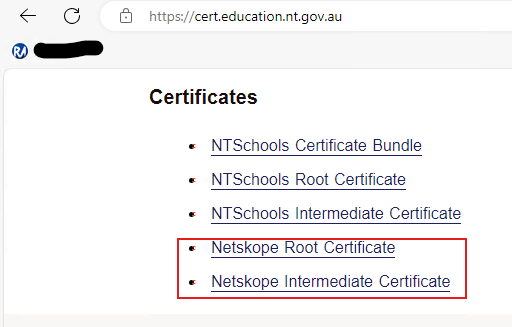
1. Open browser (Edge, Chrome etc.) and navigate to https://cert.education.nt.gov.au

2. Under the “Certificates” heading find and download both of the following certificates, Netskope Root Certificate and Netskope Intermediate Certificate
3. Open the “Downloads” location on your computer.

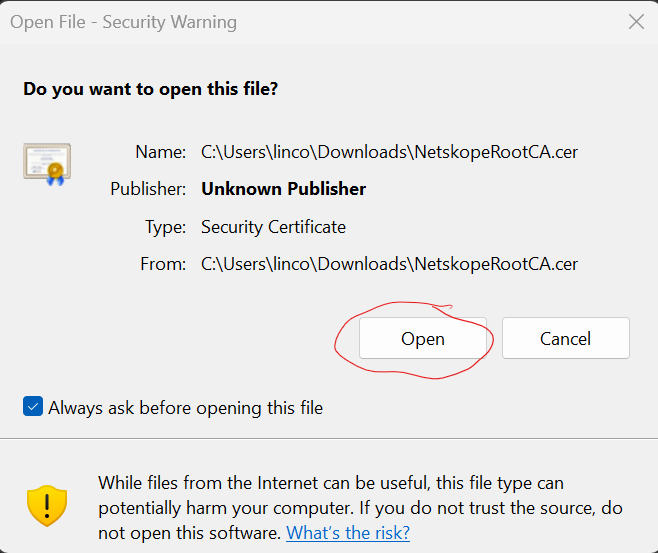
4. Open the NetskopeRootCA certificate accepting the security warning

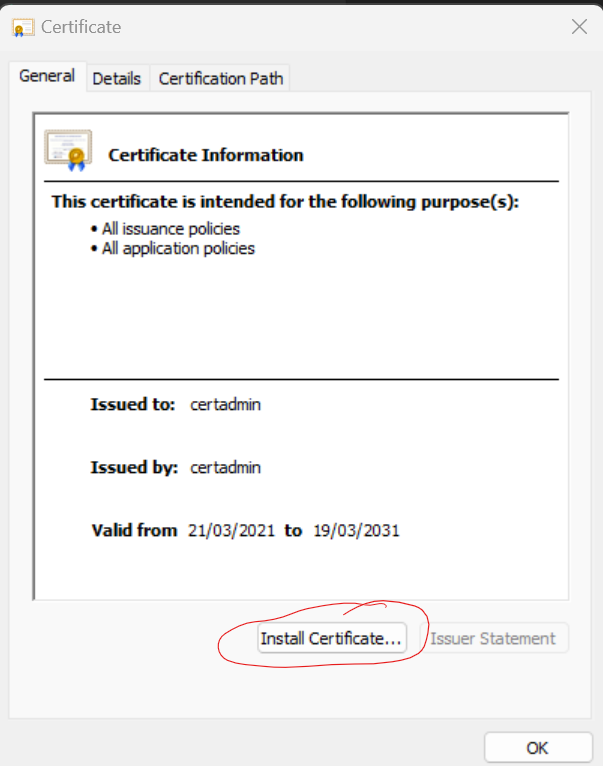
5. On the Certificate window select Install Certificate

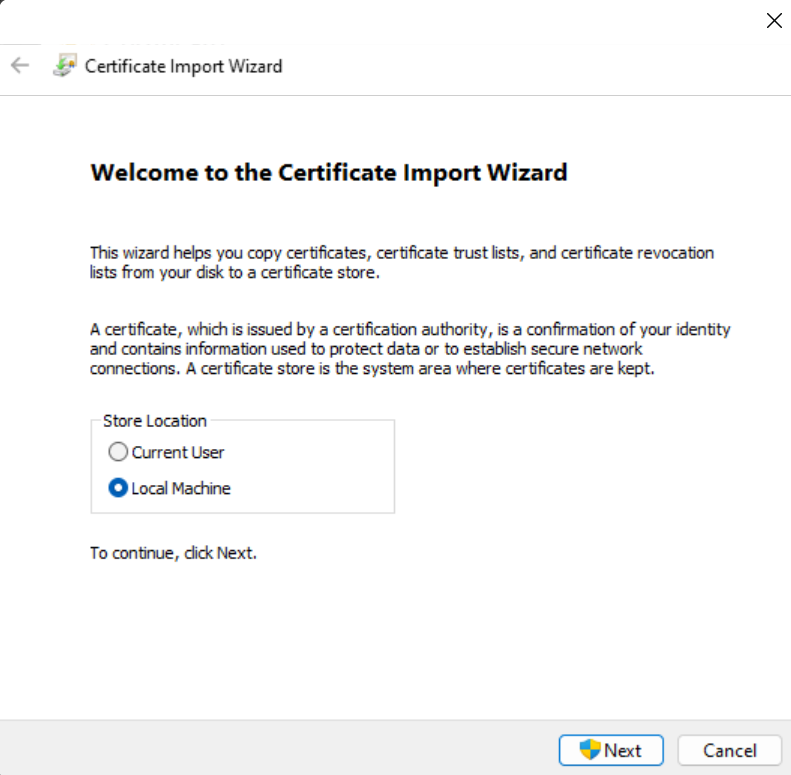
6. Set the Store Location to Local Machine and click Next. 

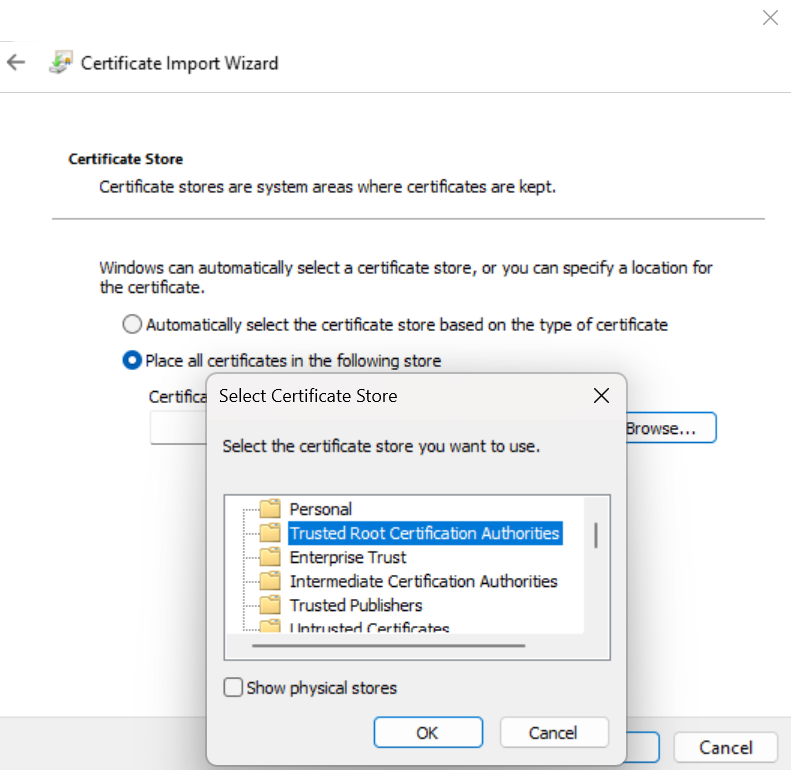
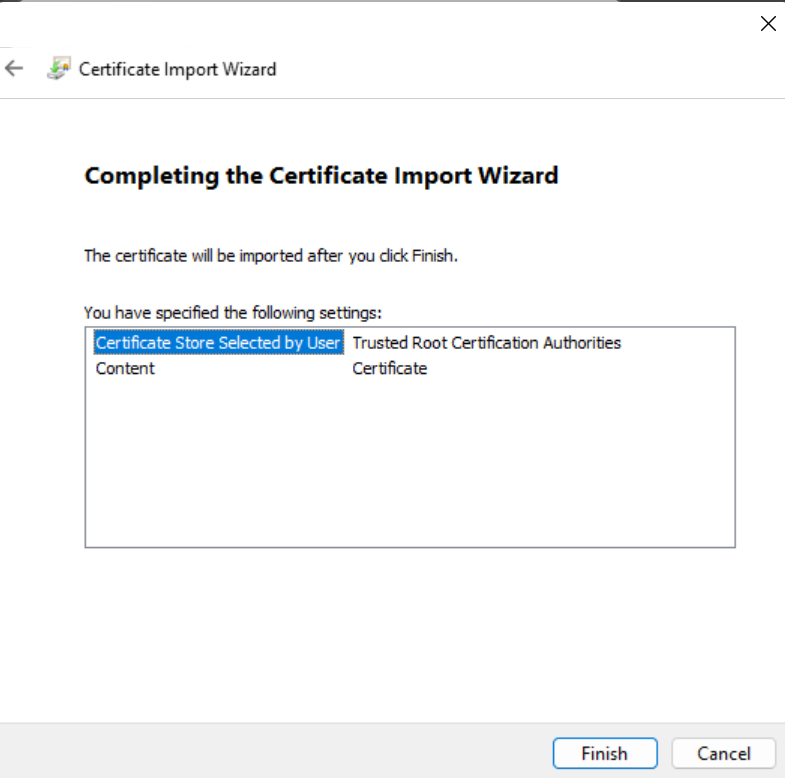
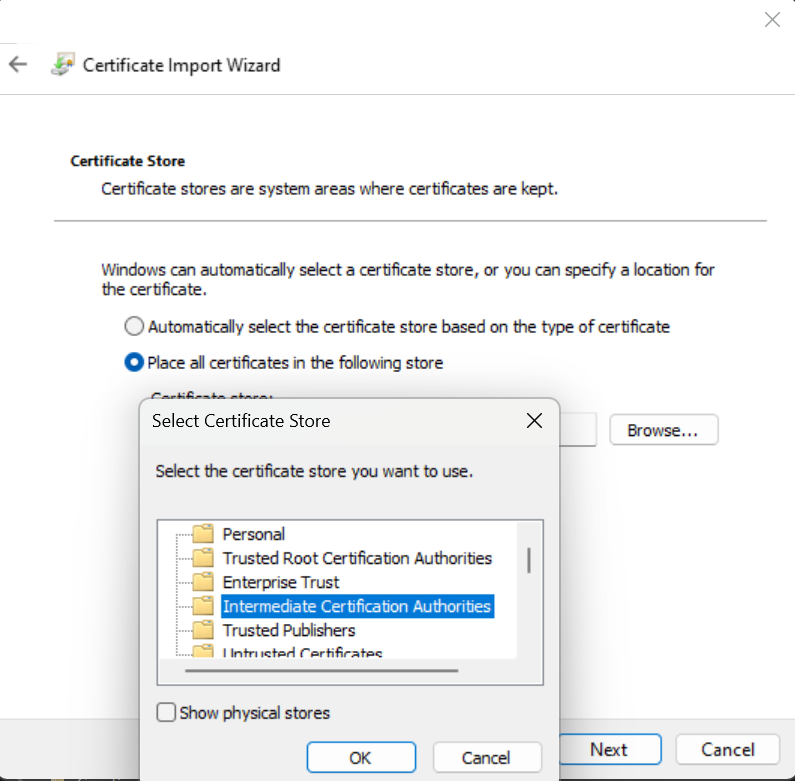
7. Select Place all certificates in the following store then click Browse and on the pop-up window choose Trusted Root Certification Authorities.  Click OK then Finish

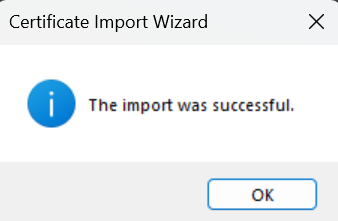
 You should now see a message saying “The import was successful.” 

8. Press OK and OK to finish up the install.

9. Repeat the process from step 3-7 to install the NetskopeIntermediateCA certificate

10.Select Place all certificates in the following store then click Browse and on the pop-up window choose Intermediate Certification Authorities.  Click OK then Finish

Please note the different store locations for the different certificates.

Test Internet Connection
  1. Open your preferred internet browser
  2. Type your school’s name in the search bar and click on Enter
  3. A list of search results will appear, click on your school’s weblink
  4. Your school’s website should appear in the browser window. If it does not appear, you may need to redo the process.
Your BYOD setup is now complete for use on the
NT Christian Schools BYOD network.